
If you are a Bell Aliant FibreOP user, you may have noticed by now how spectacularly crappy the Actiontec Wifi router can be. I used to have to reboot mine once a week because it would randomly just stop working. I tried to swap it out with a router I had picked up when I was still using ADSL, but it wouldn't work. Seems only the Actiontec can speak the language that is required to talk to the FibreOP service.
 |
| Actiontec Router: good riddance. |
Or so I thought. Enter Asus, with a line of routers that will allow you to just throw away* that Actiontec and replace it with a powerful router that will supercharge your FibreOP experience. Even if you are using FibreOP TV you will notice a difference. And its not that expensive.
 |
| ASUS RT-N56U, $99 |
Here are your step by step instructions on how to replace your Actiontec router.
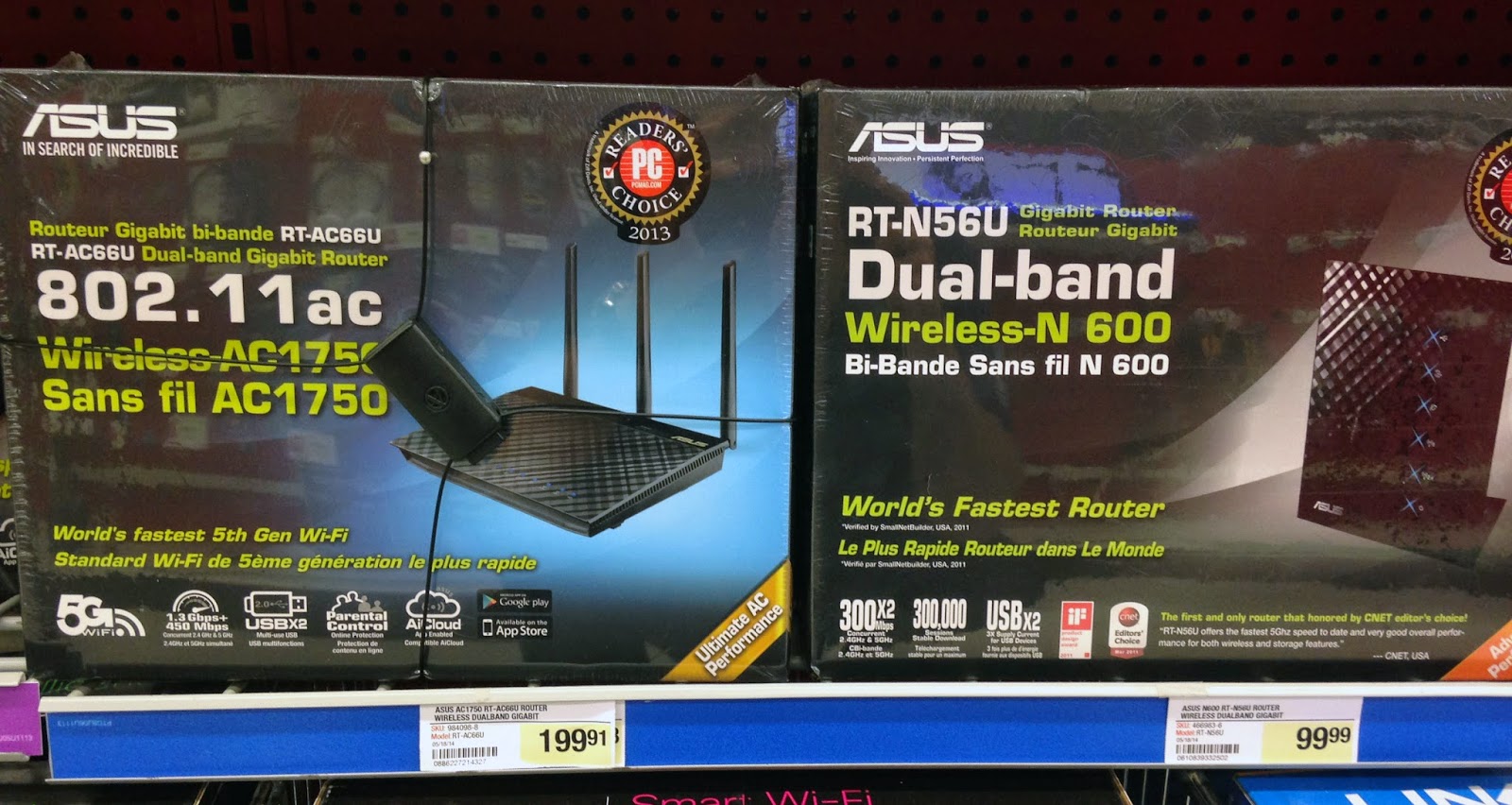
1. Head to Staples and pick up the ASUS RT-N66U router for $99 (cheapest place I've seen it). Or for future proofing get the ASUS RT-AC66U and upgrade your Wifi from n speeds to the new fangled ac speeds!
2. Log into your Actiontec FibreOP router and click on the "Status" tab, and copy down the MAC address, you'll need it later. Then click the "Release" button.
3. Unplug the Actiontec and remove all cables from it. Set it aside. If it all goes well, you won't need it anymore. Ever.
4. Unbox and plug in your new Asus router. Connect the cable coming from the FibreOP box to the Internet port on the ASUS router. Connect your main FibreOP TV set top box into port 4 on the router. If you have other Wireless TV set tops, plug the Wireless VAP into port 3 on the ASUS router.
5. Skip the setup wizard on the ASUS router and go straight to the main page. Click on the images below for screenshots of the configuration page. Click on "LAN" in the menu on the left. Then click on "IPTV"


6. Set the values on this page to match the image above. Choose "Manual" for the ISP Profile.
Internet, VID is 35, PRIO is 0
LAN Port 4, VID is 34, PRIO is 4
LAN Port 3, VID is 34, PRIO is 4
Hit "Apply" and the router will reboot.
(LAN Ports 3 and 4 only need be configured if you have FibreOP TV)7. Click on "WAN" and copy the MAC address from the Actiontec you copied down from step one and past into into the box highlighted below. DONE. Hit the apply button, the router will reboot. Enjoy supercharged FibreOP!

Notes
If you are using FibreOP TV, ports 3 and 4 can only be used for the TV service and internet will only be available on ports 1 and 2. If you need more than that, you will need to get a gigabit network switch ($40).
Also, this guide omitted setting up the Wifi. I'm assuming you will know how to do that. just click on the wireless button, name your Wifi network, put in a password and hit Apply. Easy.
* Do not actually throw away the Actiontec router, Bell will want it back one day.
Source: http://www.digitalhome.ca/forum/showthread.php?t=134496
